Ads

Get STM32 tutorial using HAL at $10 for a limited time!

Showing posts with label Arduino. Show all posts

Friday, July 17, 2015

Arduino Tutorial - Make Delay with Timer 0 (CTC Mode, Pooling)

In my another tutorial Make Delay with Timer 0 (CTC Mode, Pooling), I have made a delay function using timer 0 in normal mode. This time I will modify the timer mode to use CTC mode. In normal mode, timer count will count up from loaded value to overflow value. In CTC mode, timer count will count up from zero to compare match value. Compare match value is stored on compare match register (OCRx). To calculate compare match value for delay 10ms, we can use this formula OCR0A = (0.01s * 16000000Hz)/1024 = 156 = 0x9C.

After we get OCR0A value, we can use that in delay function:
// Delay 10ms with timer 0 CTC mode, pooling
void T0Delay()
{
    // Load initial count value
    TCNT0 = 0;
    // Load compare match value
    OCR0A = 0x9C;
    // Init timer mode and prescaler
    TCCR0A = (1 << WGM01);
    TCCR0B = (1 << CS02) | ( 1 << CS00);
    // Wait until timer 0 compare match
    while ((TIFR0 & (1 << OCF0A)) == 0);
    // Stop timer 0
    TCCR0B = 0;
    // Clear compare math flag
    TIFR0 = (1 << OCF0A);
}

Arduino Tutorial - Make Delay with Timer 0 (Normal Mode, Pooling)

In this tutorial, I will show you how to make a delay function with timer 0 on Arduino Uno. The delay function will generate a delay of 10ms. The settings that I used for this timer is normal mode. In this mode, timer will count from a loaded value up to timer overflow value. Loaded value for timer 0 (TCNT0) can be calculated with this formula TCNT0 = (1 + 0xFF) - (T * CLK)/N. T is the period of this timer will be overflow (0.01s), N is the prescaler, and CLK is the crystal frequency (16 MHz). The prescaler that I use is 1024. Therefore the TCNT0 value is (1 + 0xFF) - (0.01s * 16000000Hz)/1024 = 100 = 0x64.

This is the function for generating 10ms delay using timer 0:
// Delay 10ms with timer 0 normal mode, pooling
void T0Delay()
{
    // Load initial count value
    TCNT0 = 0x64;
    // Init timer mode and prescaler
    TCCR0A = 0;
    TCCR0B = (1 << CS02) | (1 << CS00);
    // Wait until timer 0 overflow
    while ((TIFR0 & (1 << TOV0)) == 0);
    // Stop timer 0
    TCCR0B = 0;
    // Clear time 0 overflow flag
    TIFR0 = (1 << TOV0);
}
In this function there is a while loop for waiting until timer 0 is overflow. Using while loop for waiting something happen is usually called pooling method. When use pooling method, CPU is not do anything and can't do other task, just wait until something happen.

Saturday, May 16, 2015

Arduino and Ethernet Shield Tutorial - Control a LED from PC

In this tutorial, I will explain how to control a LED from PC using Arduino ethernet shield. The Arduino ethernet shield is use WIZnet W5100 ethernet chip. The advantage of using this chip over ENC28J60 is the TCP/IP stack is already implemented by hardware on this chip. With ENC chip the TCP/IP must implemented on the MCU that is interfaced to it.


This shield is also has a micro SD card socket to interfacing with a micro SD card. Arduino communicates with both W5100 and micro SD card using the SPI bus. This is on digital pins 13 (SCK), 12 (MISO), 11 (MOSI), 10 (SS for the W5100), and 4 (SS for the micro SD card). To make a program using this shield is very easy, because there is a library from Arduino both for ethernet and SD.

Tuesday, May 5, 2015

Arduino and ENC28J60 Module Tutorial - Ping Test from PC to Arduino

In this tutorial, I will explain how to use ENC28J60 ethernet module.


To use this module with Arduino, I will use EtherCard library. In this tutorial, I will make a simple code on Arduino, so a PC that connected to network can do a ping test to the Arduino. 

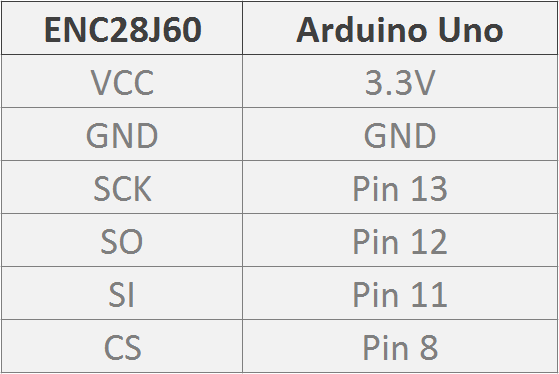
First thing to do is connect the ENC28J60 to Arduino using this connection:


Tuesday, April 7, 2015

Arduino 16x2 LCD Keypad Shield

In this tutorial, I will share how to use 16x2 LCD Keypad Shield with Arduino Uno. This product is compatible with Arduino LCD library (LiquidCrystal.h). There are 5 buttons in this product (up, down, left, right, and select) that can be used for make project such as display menu items and select them with the buttons.
The 5 buttons in this product are connected to only single pin (A0), so this will save the use of pins. This technique usually called multiplexing. Multiplexing technique can be implemented with multiplexer IC such as 74153. But in this product they use a chain of resistor to do multiplexing. The buttons are connected to a chain of resistors using voltage divider technique. 


Saturday, December 20, 2014

Use Arduino as a USB to TTL Serial Converter

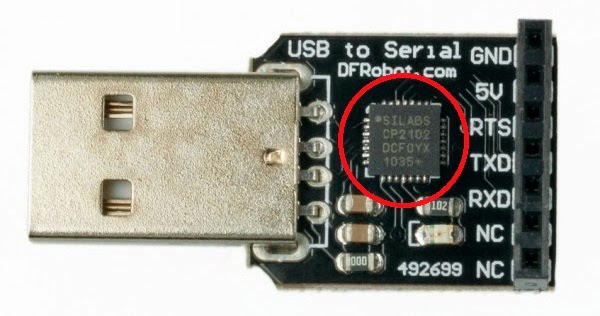
USB to TTL Serial is a module to convert the USB signals to TTL Serial signals. Serial protocol (RS232) is a standard for interfacing between computer and embedded device. Serial protocol is a standard that easy to use, but on new model motherboards or laptops, serial port is no longer supported. So USB to TTL Serial converter can be a solution for interfacing between computer and embedded device.


In this module, an IC such as FTDI is used to convert USB signals to TTL Serial signals. Other alternative to FTDI is use microcontroller that can be programmed as USB to TTL Serial converter such as ATmega16u2. This IC used to handle the USB communications on one side, and TTL serial communications on the other.


Friday, March 7, 2014

Interfacing Arduino to PC Using Processing

Processing is an open source prgramming language and IDE. Processing can used for drawing image or animation. Processing can be download from here. The IDE is very similar to Arduino IDE.


Saturday, January 11, 2014

Programming ATmega16/16A with Arduino IDE

In this tutorial, I will share how to program AVR ATmega16/16A using Arduino IDE. First, download the definition file from here. Next, Copy custom folder from extracted file to hardware folder in Arduino IDE.

Run the Arduino IDE, then from menu Tools select Board → ATmega16/16A (16MHz, External).